Comic strips and cartoons are two engaging
instructional tools to use in the library with all different grade levels. They
are effective because they engage students in meaningful learning experiences.
Students can own their learning of key skills such reading, writing, speaking
and communicating. They are extremely effective for ELL students who can use pictures
to effectively communicate their knowledge of content.
Why should I use Cartoons and Comics in the
Library?
Comics are fun, interesting and motivating.
Comics promote a wide variety of skills: cognitive,
intellectual, social, and cultural.
Can be used to teach different school subjects.
Can help students develop higher-order thinking skills
(sequencing, predicting, inferring, synthesizing, analyzing, evaluating...etc).
Enhance students engagement with multimodal texts.
Make students aware of the multimodal means through which
meanings are constructed and communicated.
Ideal teaching tools for teaching a target language
Visually illustrated content is much easier to process,
understand and remember.
Can be used to teach reading, writing, listening, and speaking
skills.
What are some ways I can use Cartoons and Comics
in the Library?
Digital storytelling: students (in small groups or individually)
create a narrative storyline and illustrate it with relevant graphics.
Students use comic strips to visually retell a read aloud read
in the library.
Provide students with blanked out comic strip and ask them to
write a story based on the illustrated characters. (writing activity, promote
predicting skills)
Use comic strips to raise students awareness to topics such as
racism, bullying, digital citizenship…etc.
Use comics to improve students speaking skills by asking them to
act out comics they created. Alternatively you can engage students in oral
discussions about the content of the comics.
Tools to create Comics and Cartoons in the
Library
Pixton
Is a web based application that can be used by educators
and students. You can create a class for each class or grade level that comes
to the library to make comics. It is easy to use, and you can buy different packages
for students to use.
Below is the comic strip I created using Pixton
The comic was easy to create. It allowed me to download
the comic and it was easy to save. Students would find it easy to use. The con
is the you have to purchase more of the images to use to create the comics.
Students can learn a
great deal just by watching technology in the
classroom videos and learning
from the thoughts, experiences, and demonstrations of others. In fact, they
already are. Students are naturally watching videos that are interesting and
relevant.
·Flipped
Instruction. - this allows the students to become the teacher or making the
classroom content available anywhere. With YouTube you can assign students to watch
a video before coming to the library. Students can use as a resource to learn
class content. Do you want to give students a resource they could use to learn
outside of the class? Find (or create your own) videos on YouTube that address
the material you need and give the links to your students.
·Supplemental
Information. – a librarian can give students extra information that you
don’t have class time to commit to. Share the interesting links with students.
Students could benefit from some additional video resources to help them when
they’re working outside of class.
·Self-Directed
Learning- a librarian can take curriculum content and direct students to
YouTube as a resource to find the information interesting and relevant to them.
You can assign students a self-directed project or have an or have an
individual passion they want to explore, encourage them to take advantage of
YouTube.
·Classroom
Enhancers. Videos can illustrate ideas and engage students far more
substantially than textbooks, lectures, pictures, or other activities. When
possible, turn to this free resource for building more effective lessons during
class time.
Examples of Librarians videos on YouTube
Below are YouTube videos that librarians have posted
that would be most helpful for students.
Librarian Calypso Gilstrap made a video to show
students how to use online database EBSCOHOST
This librarian shows students how to Soundzaband a resource
that allows students to access royalty free music.
The librarian of Pikesville High School Library posts several videos of teachers discussing AP courses. Students who are considering taking these courses can view videos to seek more information about the courses.
The
librarian shows students how to use online cite generator Noodle Tools. The
video shows students how to make a book citation importing the ISBN information.
Below are examples of videos that students would like
best.
This is a video of a student project. It is a great
creative example of how to allow students to own their learning of curriculum
content.
This video highlights the Pikesville High School
students in their school library. It shows students engaged in the activities
of the school library.
This is a student created video about overdue library books.
It’s a great assignment to review the policy and procedures videos. The librarian
can show this at the beginning of the school year.
Students will like this video as a reference tool.
Animoto
Animoto is a Web 2.0 tool that
allows users to produce videos that blend photos, video clips, text and
music. Examine your existing curriculum to decide where the use of
Animoto will support your learning objectives. For example, Animoto could be
used for the following ideas:
·At the start of the school year, students
could use Animoto to introduce themselves or their classmates.
·Students can illustrate their own poetry
using digital images they find on Internet or ones they take.
·Animoto can be used to present research
information to the class.
·Students could illustrate step-by-step
instructions for procedure writing.
·Send students on a scavenger hunt,
supplied with digital cameras. Have students assemble their digital
images into an Animoto video to display what they found.
·Students can use Animoto to create a book
trailer.
What
is a QR Code?
A QR Code is very similar to a bar
code. QR stands for Quick Response. The image consists of square
dots in a unique configuration that provides information for the user.
QR Codes can contain text, links (to
web sites, videos, files), and much more. QR Codes are safe to use in the
classroom, so there’s no worry about leading your students astray.
Students only access what you tell them to via the QR Code.
Why should a librarian
use QR Codes in the library?
The main reason is
that it’s easy to give students web addresses and allows them to be more
independent. It allows the librarian to automate and release responsibility to
the students. QR Codes reduce frustration
of typing in a web address. QR codes are
fun for students to use!
Ways I can use QR
codes in the library?
There are many ways
to incorporate QR codes in the library. They are fun, easy to use and
create! Below are a few examples:
A Scavenger Hunt
Create a scavenger
hunt of the different genre sections of the library. Get the
students up and moving by creating a scavenger hunt. Place questions around the
room, or better yet, around the school. Add possible answers to the questions
and accompany each answer choice with a QR code that sends
students to a new location. Only the correct answer will send them to a new
question. Incorrect answers offer a hint and send them back to the question
they missed.
Simplify
Research Projects
Provide quick and easy links to articles, videos, web sites, or
podcasts that you want your students to be able to access.
Provide
Support to Struggling Readers
Make audio recordings of material you need students to read and
upload the recordings to your Google Drive or Dropbox. Link
a QR code to the web address for the file and have
the QR codes available for students who need a little extra help
when reading content area material.
New
Take on Book Reports
Make video or audio recordings of students reviewing a library
book. Link the recording to a QR code and attach it to the spine of the book.
Students will be eager to check out what their friends think about books in the
library.
Below
is an example of a book trailer I created using Animoto for the fiction young
adult book Children of Blood and Bone by author Tomi Adeyemi. It is a #1 NY Times Bestseller, has receied numerous awards! It was my favorite book of 2018!
Zélie Adebola remembers when the soil of Orïsha hummed with
magic. Burners ignited flames, Tiders beckoned waves, and Zélie’s Reaper mother
summoned forth souls.
But everything changed the night magic disappeared. Under the
orders of a ruthless king, maji were killed, leaving Zélie without a mother and
her people without hope.
Now Zélie has one chance to bring back magic and strike
against the monarchy. With the help of a rogue princess, Zélie must outwit and
outrun the crown prince, who is hell-bent on eradicating magic for good.
Danger lurks in Orïsha, where snow leoponaires prowl and
vengeful spirits wait in the waters. Yet the greatest danger may be Zélie
herself as she struggles to control her powers and her growing feelings for an
enemy.
I created a QR code
to view the book trailer below
A screencast is a video
recording of what’s happening on your computer monitor, often with annotations
and/or narration. Screencasting is a capture of all of the action on a on a
computer screen while you are narrating. So it’s the new school version of
power point!! As with anything it can be very simple such as a slide
share presentation or as advanced as a movie-like video.
Why do I
need to use Screencasting in the classroom?
Engaging students and equipping the, to be creative thinkers, student
must have an opportunity to own their learning. With the inclusion of
technology students can do that. Screencasts are a great way for both students
and teachers to share the required steps in completing a math problem,
collaborate on close reading, or pursue any other literacy activity. It also allows teachers to deliver content in a meaningful and useful
way. Think about how many times students need to refer or unpack the content
that was delivered during instruction time. Thorough a screencast a teacher can
do example math problems, review instructions for a project or assignment.
Screencast-o-Matic
Screencast-O-Matic is a screen-capture service that has a highly
functional free version, and a powerful and easy subscription plan that doesn’t
break the bank. If you use, or wish to use, screen capture technology. You can
record your screen, yourself, or both, and alternate between cameras. With
subscription you gain access to point-and-click editing tools that are simply
easy to use.It is also compatible with Chromebook, Windows, MAC and iOS. Some of the
pro’s of this tool is that it only takes about 15 minutes to record and upload
videos and it is great for homework, individual, and knowledge gain.
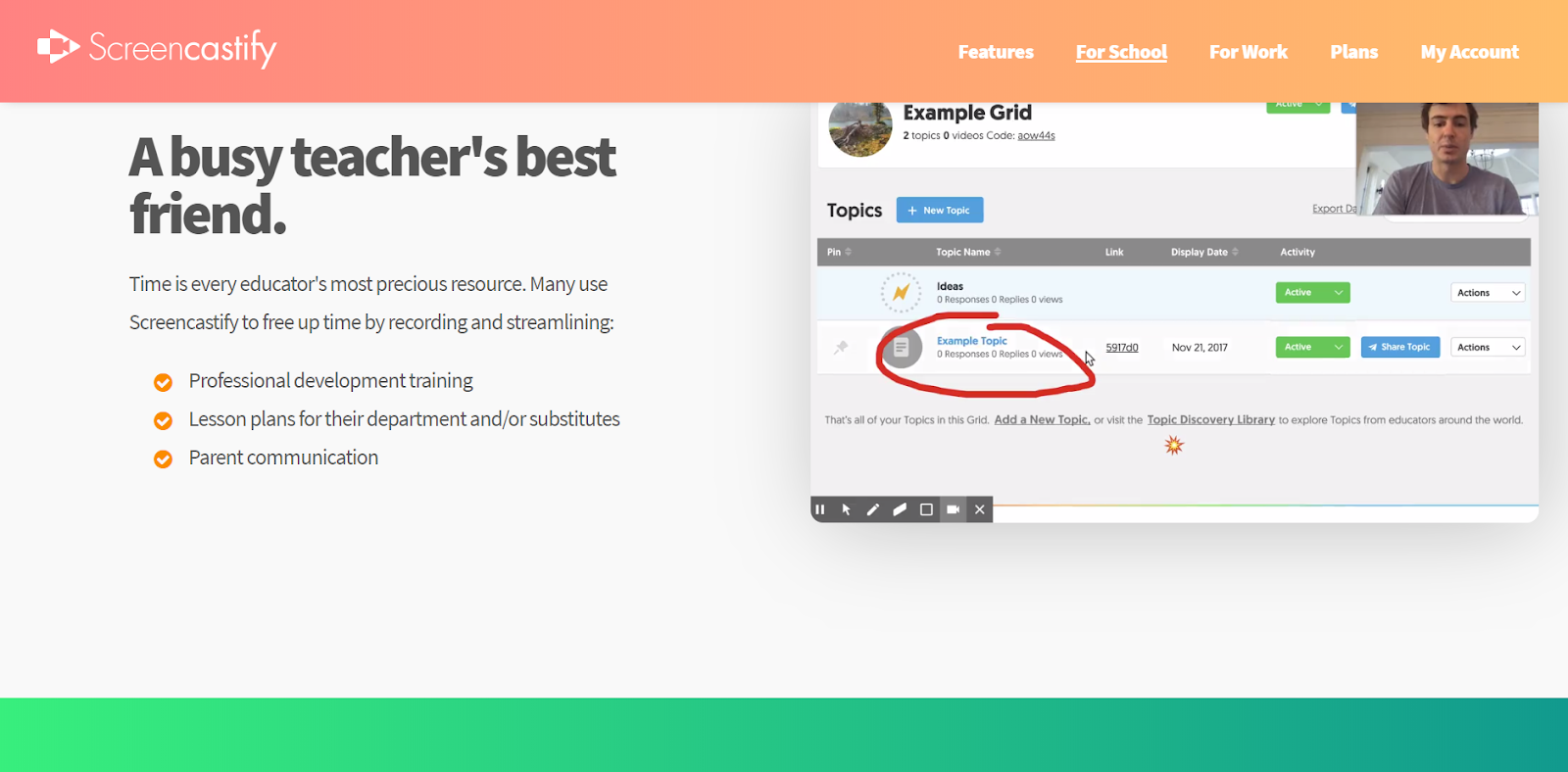
Screencastify
Screencastify
is a free Chrome browser extension that records your screen, face, voice, and
more. To use Screencastify, find its icon in the Chrome toolbar and
choose among the recording options: record a single tab in your web browser,
capture all screen activity, or use your webcam to record or insert a video of
yourself. It allows the teacher or student to save completed videos locally in
you Screencastify account or in Google Drive, or upload them to YouTube. The
free version allows up to 50 recording per month, each about 10 minutes long.
Chromebook’s
are very popular in classrooms and schools and it is completely compatible with
Chromebook. It can only be used with Chrome browsers. Screecastify captures
video and audio within tables. Find the application icon on your browser
toolbar and click record to easily record presentations, tutorials, and more.
The pros of this tool is that its Google Classroom and suite is very popular
among teachers and students. Teachers and students can use Screencastify to show
hot use the comment feature in Word for annotating class notes and reading passages.
Students can make how-to demos for instructions on using and navigating your
class home page, class wiki or blog, or other application you wish the students
to use in creating their own projects.
For my screencast example I chose to use Screencastify.
I chose this because my school district has implemented google classroom and Chromebook
throughout the district. Many classrooms are now 2:! with Chromebook in grade 3-5th.
Every middle schooler and higher
schooler can check out a Chromebook with parent permission. It was very user friendly
and completely adaptable with Google and that is the main reason for using it.
It uploads and saves directly to Google Drive. This makes it user friendly for uploading
and sharing the screencast with colleagues, parents, and students. Below is my screencast giving parents and students a
tutorial of the Heflin School Library webpage.
Infographics
are a visual representation of data. When students create infographics, they
are using information, visual, and technology literacies. They can include numbers, text, images, or any
combination of the three. It is another tool for students to create a visual of
information that they have learned. It’s a digital display of knowledge and
research.
Why do I
need to use Infographics in the classroom?
Using Infographics in the classroom allows the use of
technology to engage learners. A teacher can assign the analysis of infographics as a close reading assignment
can be one method for engaging students in coursework that can be rigorous,
relevant, and fun. Infographics allows students to communicate information that
they are learning, and it will help students understand and apply the content
that they are learning. All of these skills are essential for the 21st
century learner.
Easelly
It is a web based application that allows students and
teachers to make infographics. You can make
a free account to use the application. It allows teachers to have access to the
upgraded version for only $4.00 monthly which is reasonable. It has over 1.1
million illustrations and images, printable and high-quality version. It allows
you to create student accounts. When exploring the application it was user friendly
and had existing templates based on categories such as reports and checklist.
The cons of this application are the limited number of templates for the free
version. It also didn’t have a variety of charts and graphs for the user to
pick from.
Infogram
It is a web-based application that allows students and
teachers to make infographics. It also can
make a free account or purchase an upgraded account. It allows the user to make
a free account and choose from certain templates. It also has a membership
option. I feel that Infogram is marketed more towards business who need to save
money on a graphic designer. It works best for those who have some experience
with making an infographic. There weren’t any tutorials on how to design or use
the interface. A user must explore and learn the interface before one can use
it.
Piktochart
It is a web-based application that allows students and
teachers to make infographics. It also can
make a free account or purchase an upgraded account. Piktochart starts the
process by asking certain design question too to find different templates for
the user. The application also allows the user to make an infographic, digital
presentation, poster, reports and fliers. The pros to this application are it
has serval tutorials through out the application to make it easy for even the
most novice of users. It walks you step-by-step to build your infographic. It
also has the most templates in the education category of the three applications
reviewed. I chose to make infographics using Piktochart because of the user
tutorials being this was the first time I have ever made one. It had so many
tutorials and tools that made it user friendly and not overwhelming. The
template was easy to navigate and make it my own.
Example Infographic
Loading...
References
Children, libraries, and reading. (2013, May 16). Retrieved from https://www.pewinternet.org/2013/05/16/children-libraries-and-reading/
Lawrence, A. (2015, May 29). The Whats Whys and Hows of Infographic Assignments. Retrieved June 29, 2019, from http://at.blogs.wm.edu/infographics-as-alternatives-to-traditional-writing-assignments-what-why-and-how/
Rainie, L. (2013, May 1). Parents, Children, Libraries, and Reading. Retrieved July 1, 2019, from https://www.pewinternet.org/2013/05/01/parents-children-libraries-and-reading/
Schrock, K. (2010, October 16). Infographics. Retrieved June 27, 2019, from https://www.schrockguide.net/infographics-as-an-assessment.html
Schulten, K. (2010, August 27). Teaching With Infographics | A Student Project Model. Retrieved July 1, 2019, from https://learning.blogs.nytimes.com/2010/08/27/teaching-with-infographics-a-student-project-model/
Twitter is another social media platform that can be
used as a educational technology tool to connect with other professional
librarians, organizations, communities, and students. In this blog post I will
be highlighting some of the biggest names in educational technology. Many
school librarians have a personal twitter page as well as a school library
twitter page.
The first twitter ed tech leader is Kathy Schrock
@kathyschrock she often tweets all the different
platforms that she is part of as a leader in ed tech. She is also an Apple teacher
and she often post apple product reviews, and new apps that are all the buzz in
ed tech. Below is tweet that she posted featuring the new Statue of Liberty AR
app using an Apple product.
If you have an iOS device, take a look at the breathtakingly beautiful Statue of Liberty AR app created by @StatueEllisNPS. I think it sets the standard for other institutions to showcase their treasures. https://t.co/Jbfx68DeX7
The next ed tech leader is Linda Braun @lbraun2000 she
is a former YALSA president. Many of her post are in promotion of YALSA and contains
a lot of information on how teachers can assist students in taking ownership of
their learning through educational technology. Below is tweet on how educators
are developing digital learning programs to meet youth interest needs.
“Educators often develop digital learning programs to meet youth interest…they can also leverage these interests by directly involving them in design of new programs, leading to deeper learning and engagement.” https://t.co/yDJDN9DwTN
Alan November @globalearner is the founder of November
Learning and founder of the BLC Conference where attendees learn about the
bringing the best innovative and practical learning resources to students. His
page offers videos and more insights to the sessions that presents around the
globe. Below is a tweet highlighting his sessions.
Out of all the twitter gurus The Daring Librarian
@GwynethJones is my favorite!! Her page
is a mix of books, apps, hilarious memes, and her own personal colorful flair!
She also highlights all the aminzing activity going on in her library! Below is
a tweet that highlights a student activity
After reviewing the twitter pages of some of the top ed
tech educators I was very impressed and excited! I believe that twitter is
another social media network that allows a person unique personality to shine
through! Its purpose is to share information and engage students and parents!
Most importantly is an informational tool that allows access to digital
technology world of education and the 21st century learner.
Facebook
Facebook is another popular social media network that librarians
use. “Pages” are made to interact with
parents and students. I visited several different school library Facebook “Pages”.
I visited pages of elementary, middle school , and high school libraries. I noticed several advantages and disadvantages
of using Facebook.
Advantages
Many of the pages
that I visited highlighted important events that were happening in the library.
That included author visits, programs, after school clubs and activities. Many
of the librarians also posted book reviews and reading list, information
literacy, research skills, and citing tools to assist students. Like many
social networks you can click on the post and it will take you directly to the
source.
Disadvantages
When visiting many of the pages there did not seem to
be much activity or interaction with others on the page. Many of the post didn’t
have many like or comments. Compared to the other social media platforms such
as Instagram and Twitter.
In conclusion, I do believe that I will make a Facebook
page for my school library as a way of connecting to other organiations with in
the educator community. Below is a link to my Facebook Page.
Instagram is another social media network that allows
librarian to connect to students and parents through pictures and videos. In my
opinion this by far is the easiest to use most interactive, and most popular.
As with all three there are concerns of privacy and safety. But it does have safety
features that can be turn off and on depending on how much access you want the
public to have.
How can teachers use Instagram?
·The
number one-way teachers can use Instagram is by finding and sharing information.
I like to think of it as the world’s largest PLC!!! You can find lesson plan
ideas, bulletin boards, and engaging activities.
·Teachers
can post and share student work on Instagram giving parents immediate access like
a digital portfolio.
·Teachers
can also make unique projects for student to complete.