What is Screencasting?
A screencast is a video
recording of what’s happening on your computer monitor, often with annotations
and/or narration. Screencasting is a capture of all of the action on a on a
computer screen while you are narrating. So it’s the new school version of
power point!! As with anything it can be very simple such as a slide
share presentation or as advanced as a movie-like video.
Why do I
need to use Screencasting in the classroom?
Engaging students and equipping the, to be creative thinkers, student
must have an opportunity to own their learning. With the inclusion of
technology students can do that. Screencasts are a great way for both students
and teachers to share the required steps in completing a math problem,
collaborate on close reading, or pursue any other literacy activity. It also allows teachers to deliver content in a meaningful and useful
way. Think about how many times students need to refer or unpack the content
that was delivered during instruction time. Thorough a screencast a teacher can
do example math problems, review instructions for a project or assignment.
Screencast-o-Matic

Screencast-O-Matic is a screen-capture service that has a highly functional free version, and a powerful and easy subscription plan that doesn’t break the bank. If you use, or wish to use, screen capture technology. You can record your screen, yourself, or both, and alternate between cameras. With subscription you gain access to point-and-click editing tools that are simply easy to use. It is also compatible with Chromebook, Windows, MAC and iOS. Some of the pro’s of this tool is that it only takes about 15 minutes to record and upload videos and it is great for homework, individual, and knowledge gain.


Screencastify

Screencastify
is a free Chrome browser extension that records your screen, face, voice, and
more. To use Screencastify, find its icon in the Chrome toolbar and
choose among the recording options: record a single tab in your web browser,
capture all screen activity, or use your webcam to record or insert a video of
yourself. It allows the teacher or student to save completed videos locally in
you Screencastify account or in Google Drive, or upload them to YouTube. The
free version allows up to 50 recording per month, each about 10 minutes long.
Chromebook’s
are very popular in classrooms and schools and it is completely compatible with
Chromebook. It can only be used with Chrome browsers. Screecastify captures
video and audio within tables. Find the application icon on your browser
toolbar and click record to easily record presentations, tutorials, and more.
The pros of this tool is that its Google Classroom and suite is very popular
among teachers and students. Teachers and students can use Screencastify to show
hot use the comment feature in Word for annotating class notes and reading passages.
Students can make how-to demos for instructions on using and navigating your
class home page, class wiki or blog, or other application you wish the students
to use in creating their own projects.
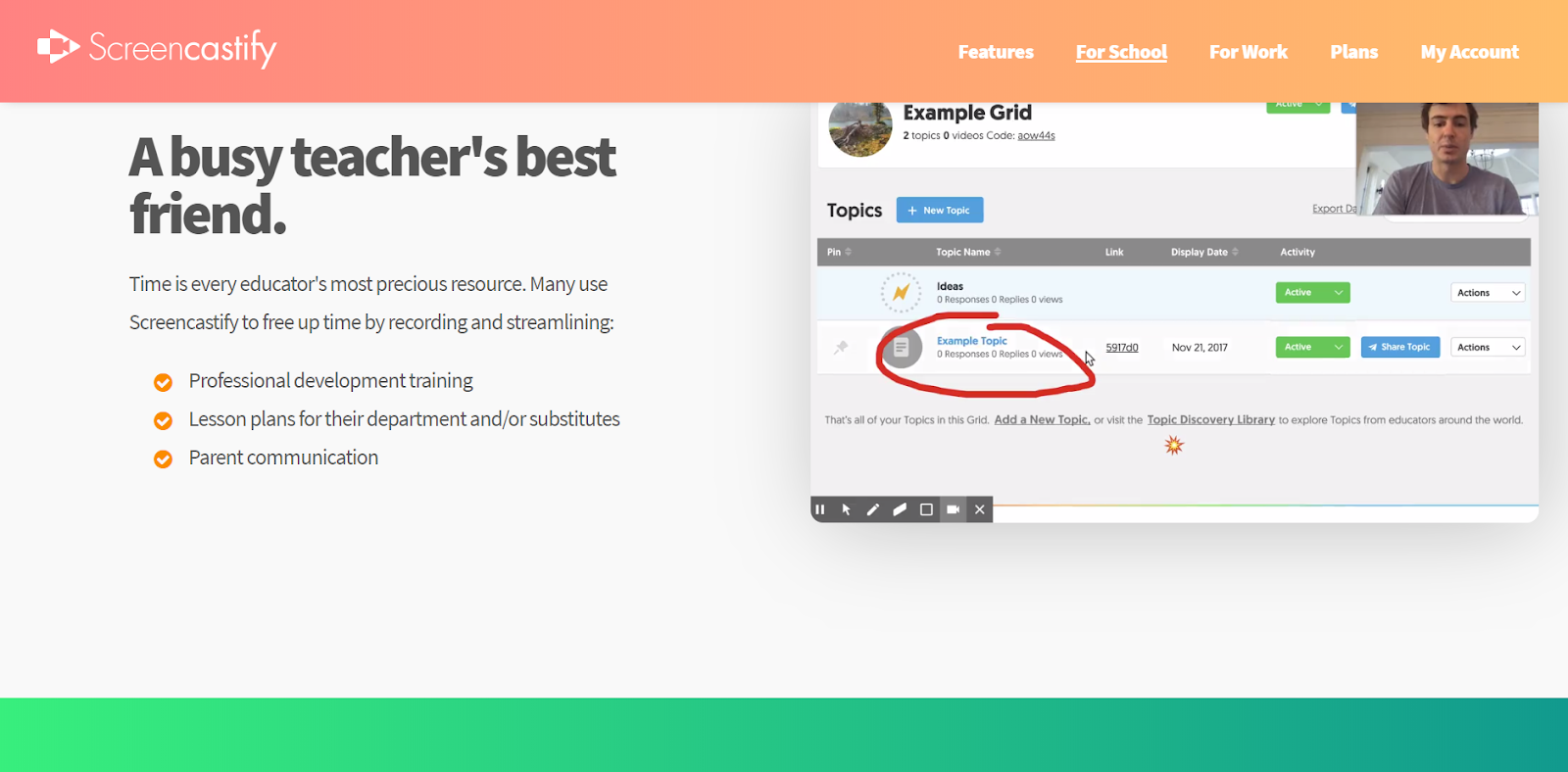

For my screencast example I chose to use Screencastify.
I chose this because my school district has implemented google classroom and Chromebook
throughout the district. Many classrooms are now 2:! with Chromebook in grade 3-5th.
Every middle schooler and higher
schooler can check out a Chromebook with parent permission. It was very user friendly
and completely adaptable with Google and that is the main reason for using it.
It uploads and saves directly to Google Drive. This makes it user friendly for uploading
and sharing the screencast with colleagues, parents, and students. Below is my screencast giving parents and students a
tutorial of the Heflin School Library webpage.

No comments:
Post a Comment